Use Cases
Use Cases
Collection of real-world use cases helping SOC leverage SocXpress features for detection and rapid response.
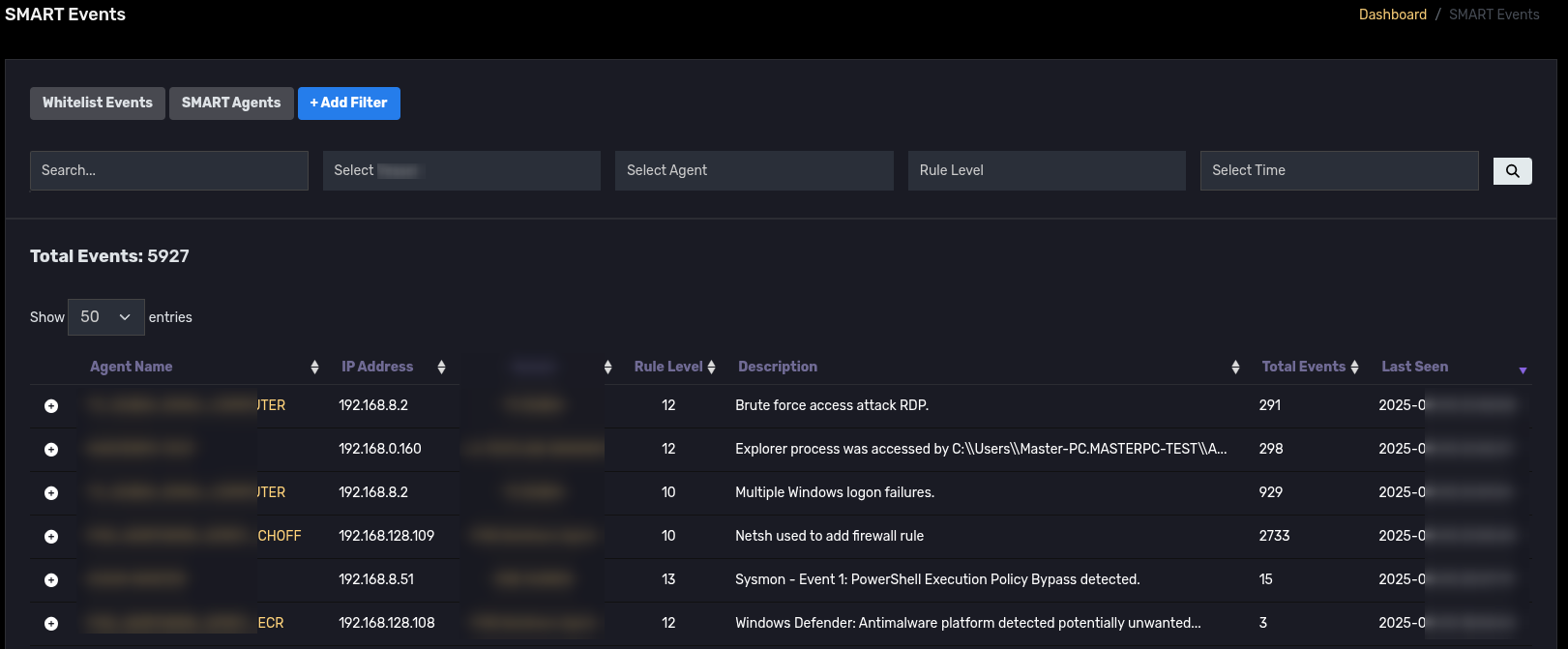
1. Real-time monitoring with Smart Events
- Group similar alerts to reduce noise and focus on analysis.
2. Log analysis using Events & DQL
-
Use Events + DQL to perform deep queries, finding related processes/files/IPs.
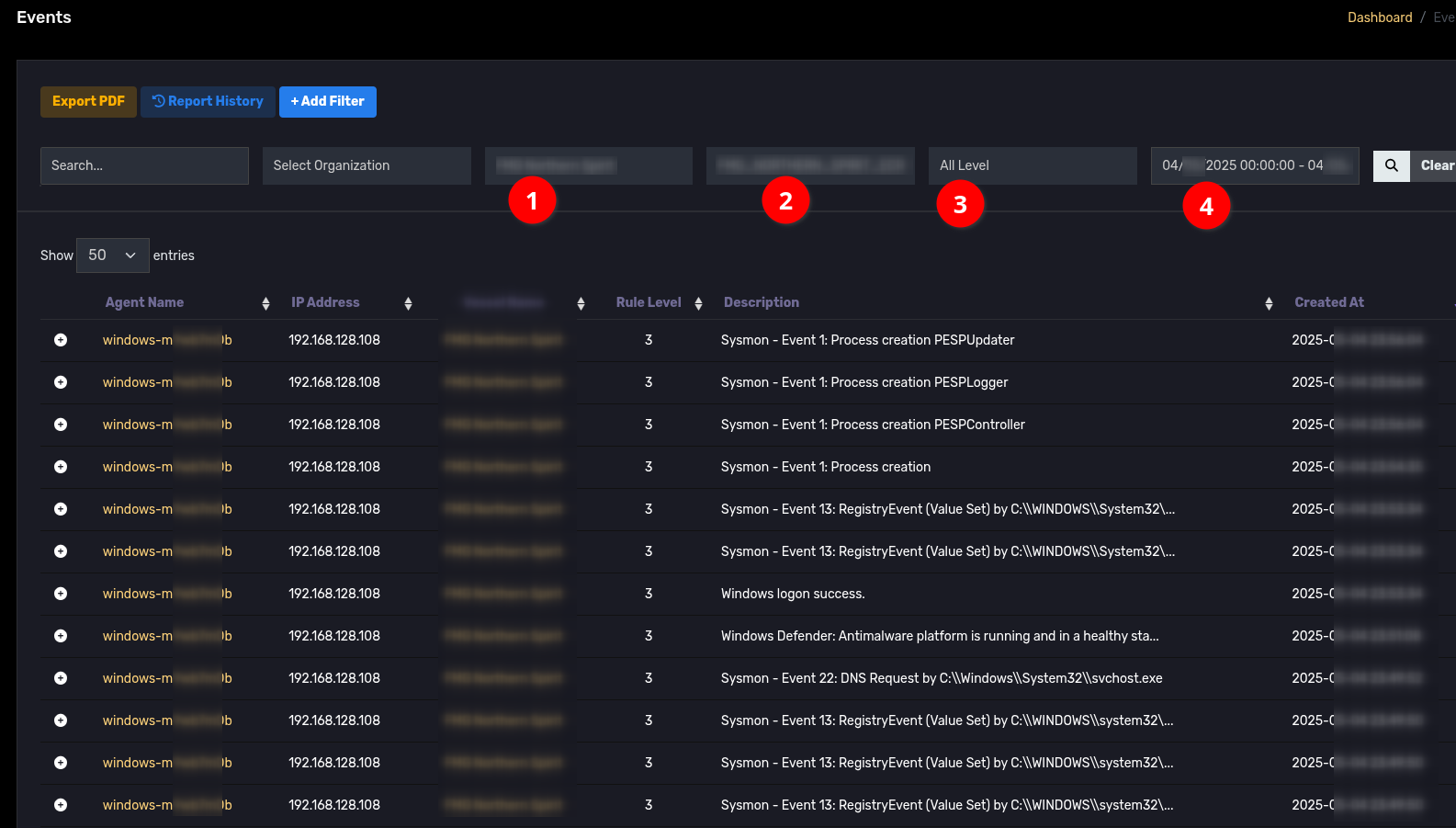 Analyst accesses the Events feature, selects the corresponding Sensor at (1), selects the corresponding server at (2), and selects All Level (3). Select the time range around the event to investigate at (4).
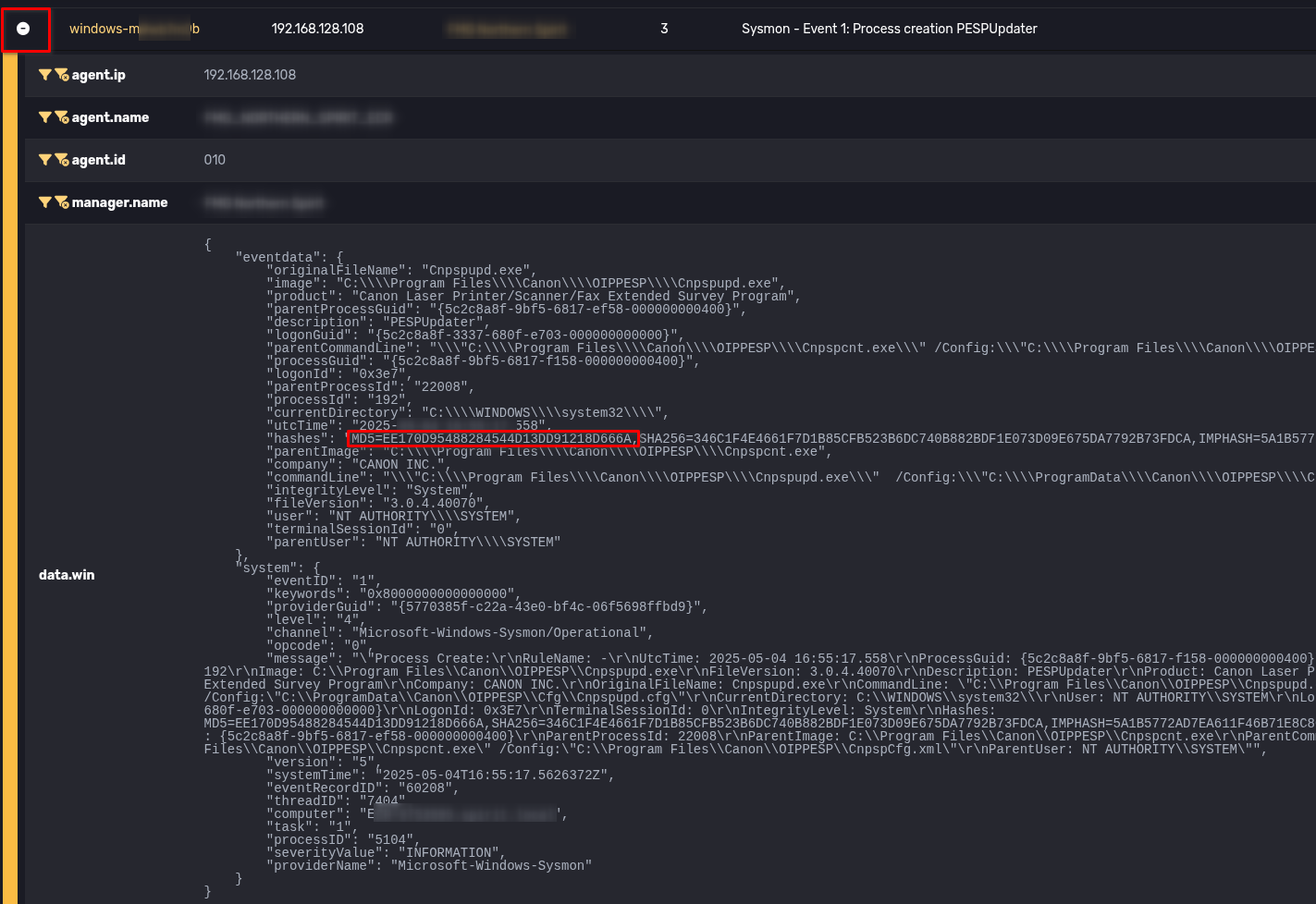 The screen displays corresponding log events as shown above. Analysts can click (+) to view log event details.
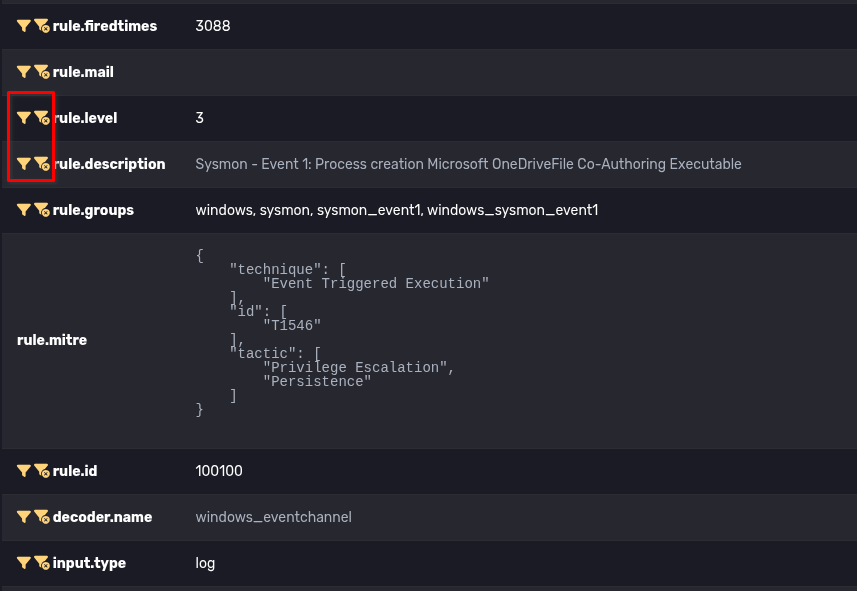 The Events feature also supports Filter for easier log access, avoiding distracting alerts. By clicking on corresponding filter fields (as shown), Analysts can retrieve the desired logs.
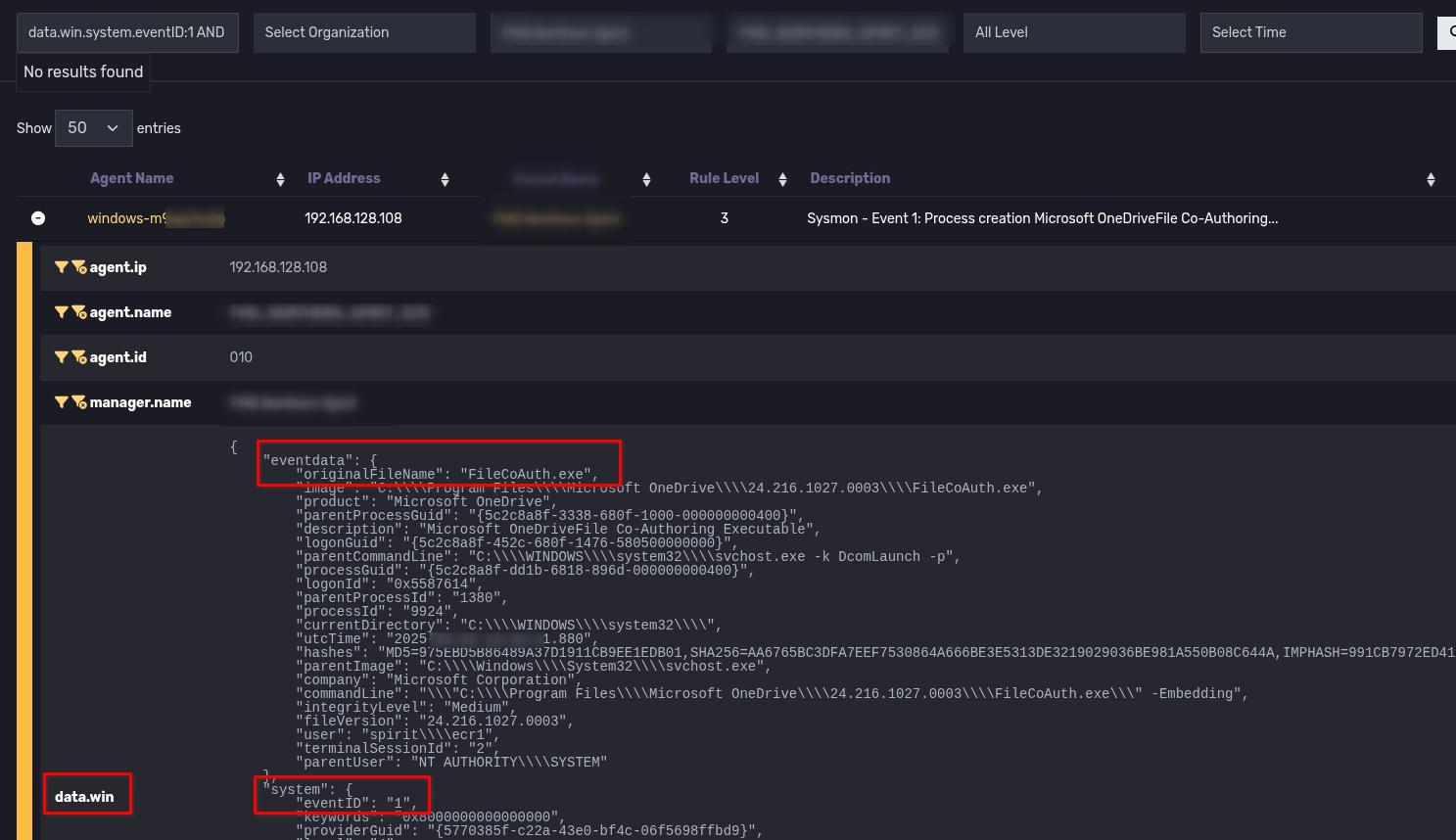
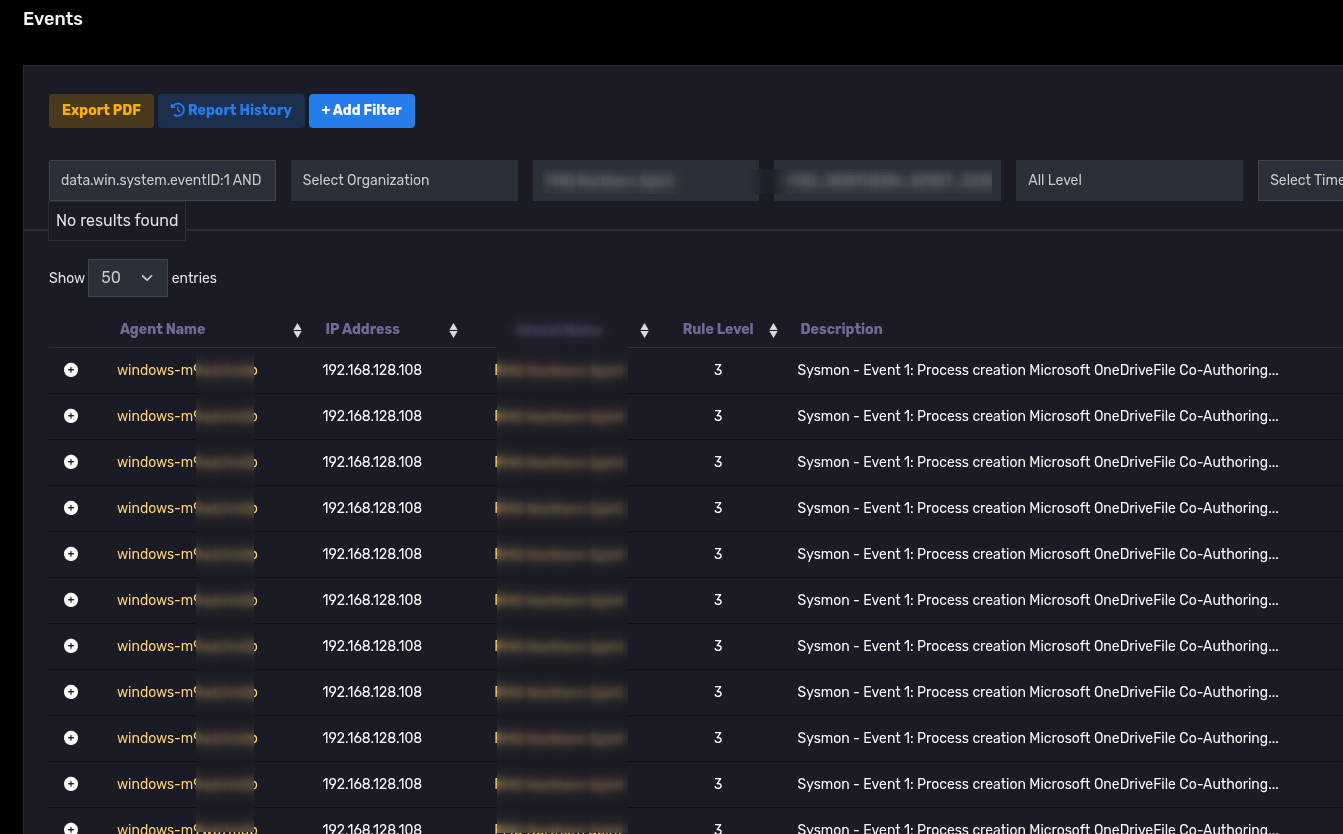 DQL Query helps analyze detailed fields in logs. The query below is an example to retrieve events belonging to Sysmon Event 1 with filename FileCoAuth.exe (note: need to select log All Level)
 data.win.system.eventID:1 AND data.win.eventdata.originalFileName:FileCoAuth.exe
3. Preliminary malware assessment
Sysmon events such as Event 1 (Process creation), Event 11 (FileCreate), etc., store hashes of processes or files. Analysts can use Threat Intelligence (such as VirusTotal) for preliminary threat assessment.
The example below shows a safe file with no malware indicators (green, displaying 0/76).
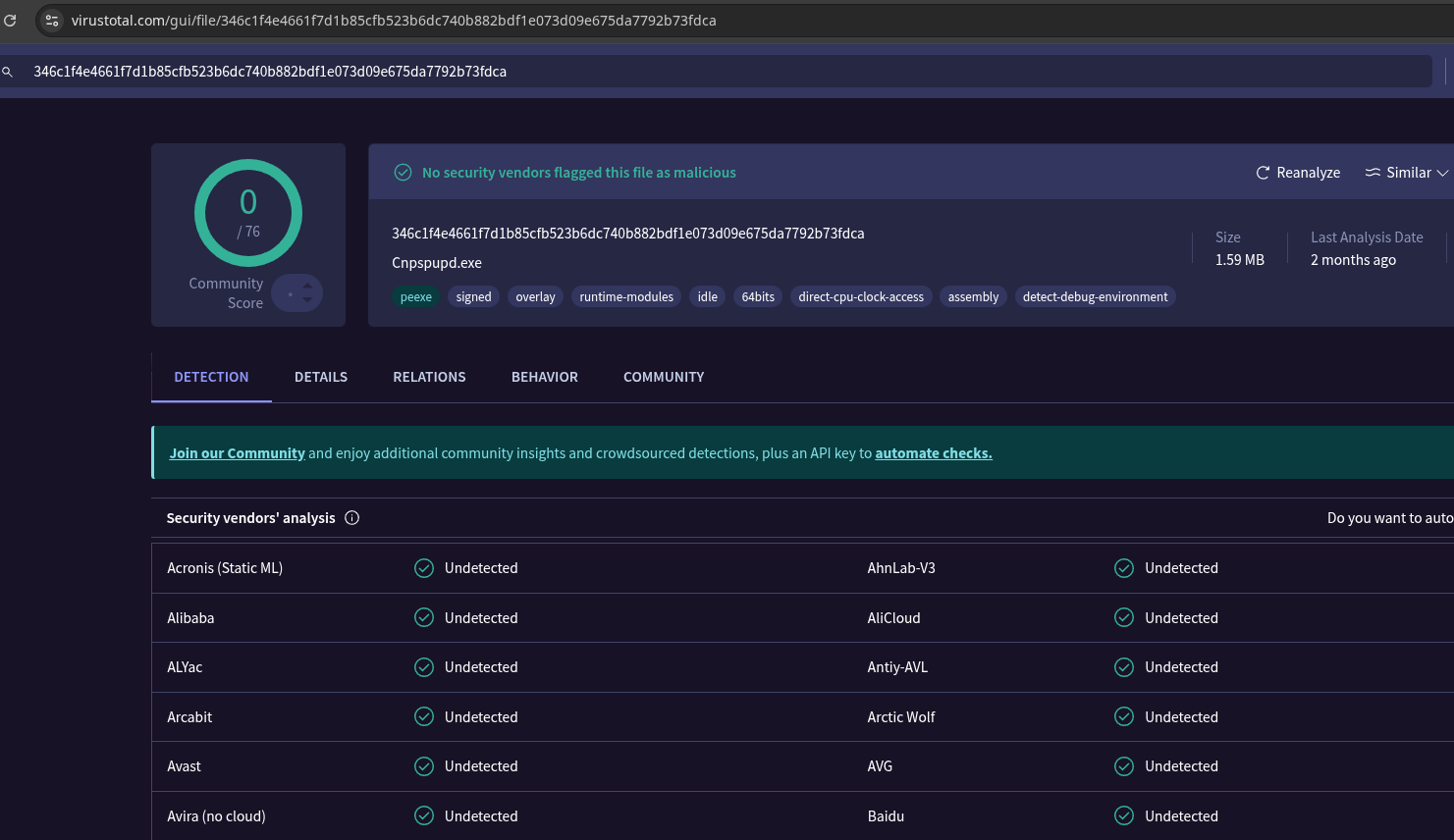
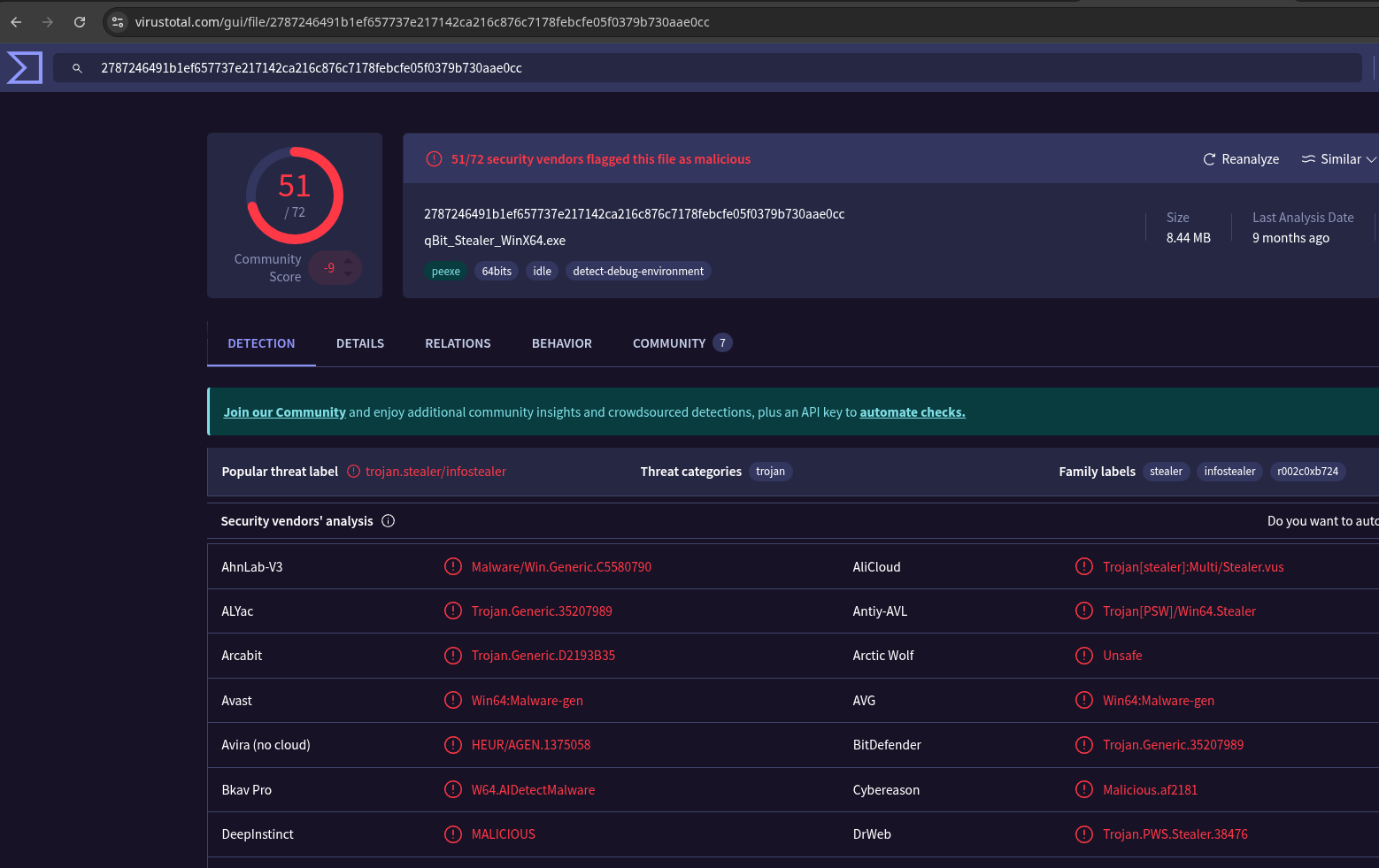
This is an example of a malicious file (red, displaying 51/76). If a malicious file is detected, the Hunting feature should be used to investigate other servers.
4. Threat hunting with Hunting
Use IOCs (MD5/SHA1/IP/MAC) to trace across the entire system.
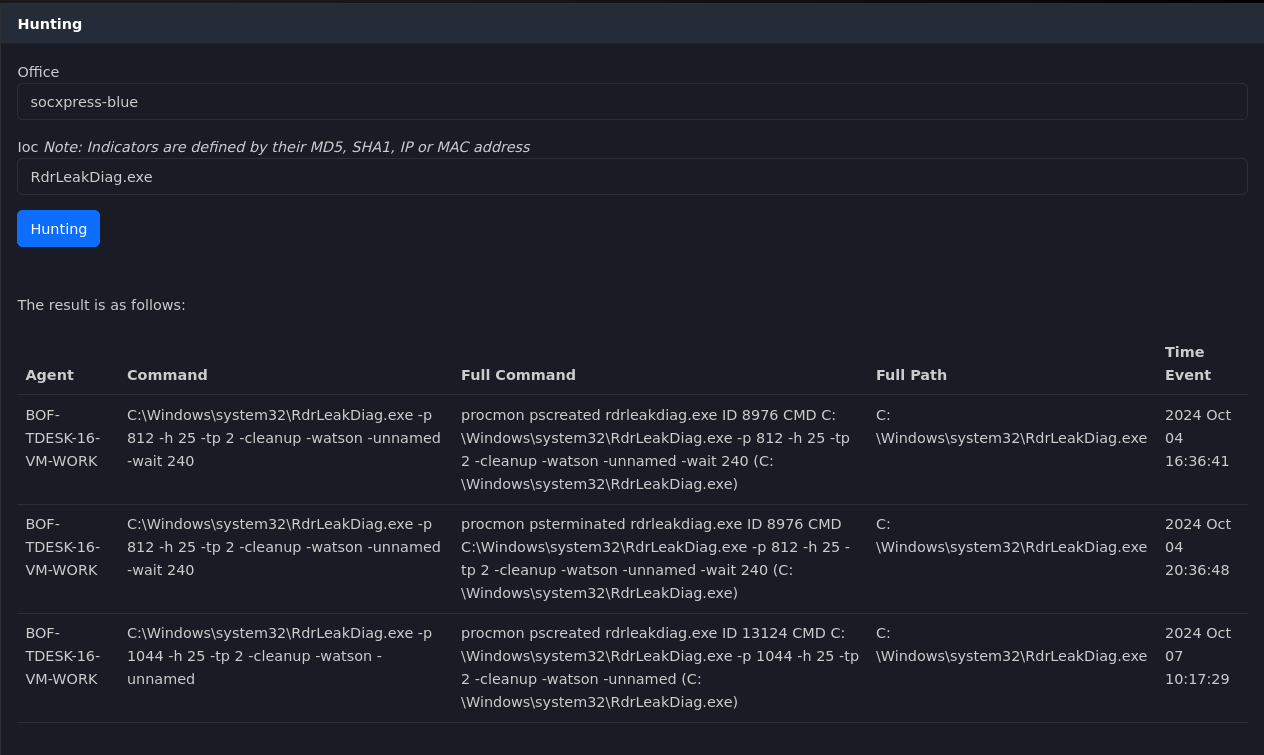
SOCXpress Hunting allows Analysts to search for malware indicators across the entire organization based on indicators of compromise (IOC) such as Process Name, MD5, SHA1, C2 Server IP, and MAC address. This feature is especially useful when malware indicators are detected on any single host — enabling rapid search to identify other hosts that may be infected with the same malware variant.
Additionally, the Hunting feature supports detailed investigation of commands executed by threat actors and monitoring of network traffic over a specific time period.
5. Creating Tickets and coordinating response
Create tickets from Events to coordinate within the SOC; assign and track progress.
After aggregating content, Analysts create tickets to coordinate within the SOC and handle events.
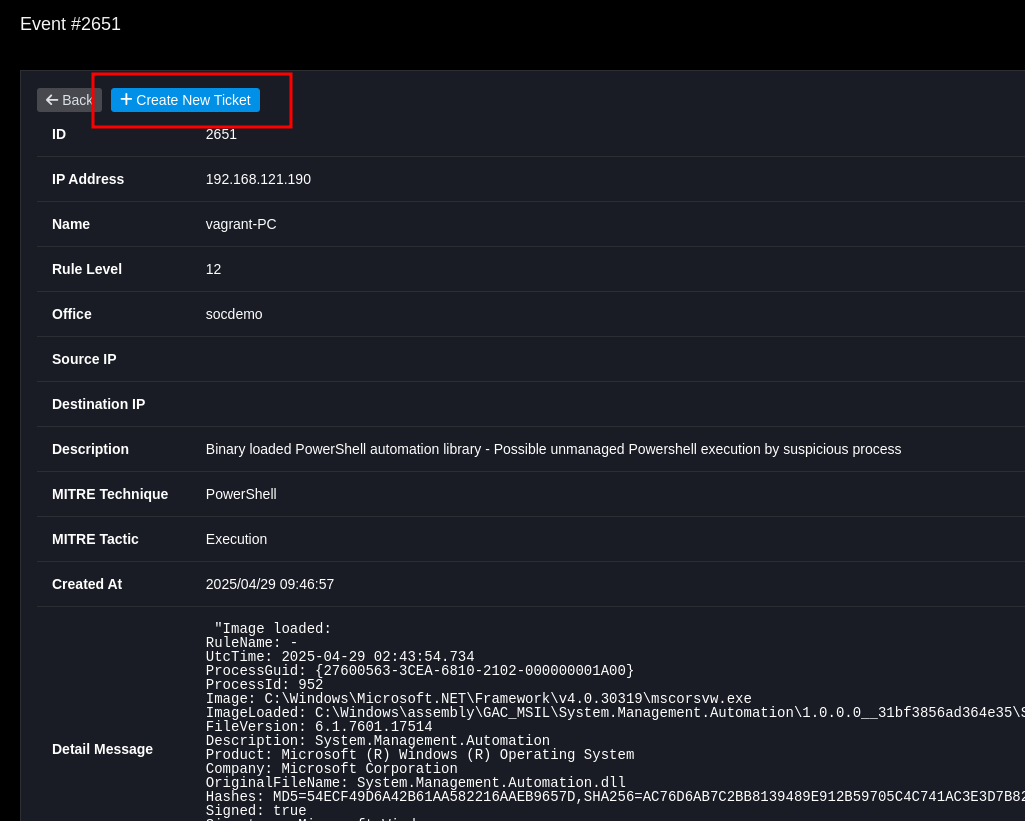
Select Events and choose Create New Ticket, or create an independent Ticket.
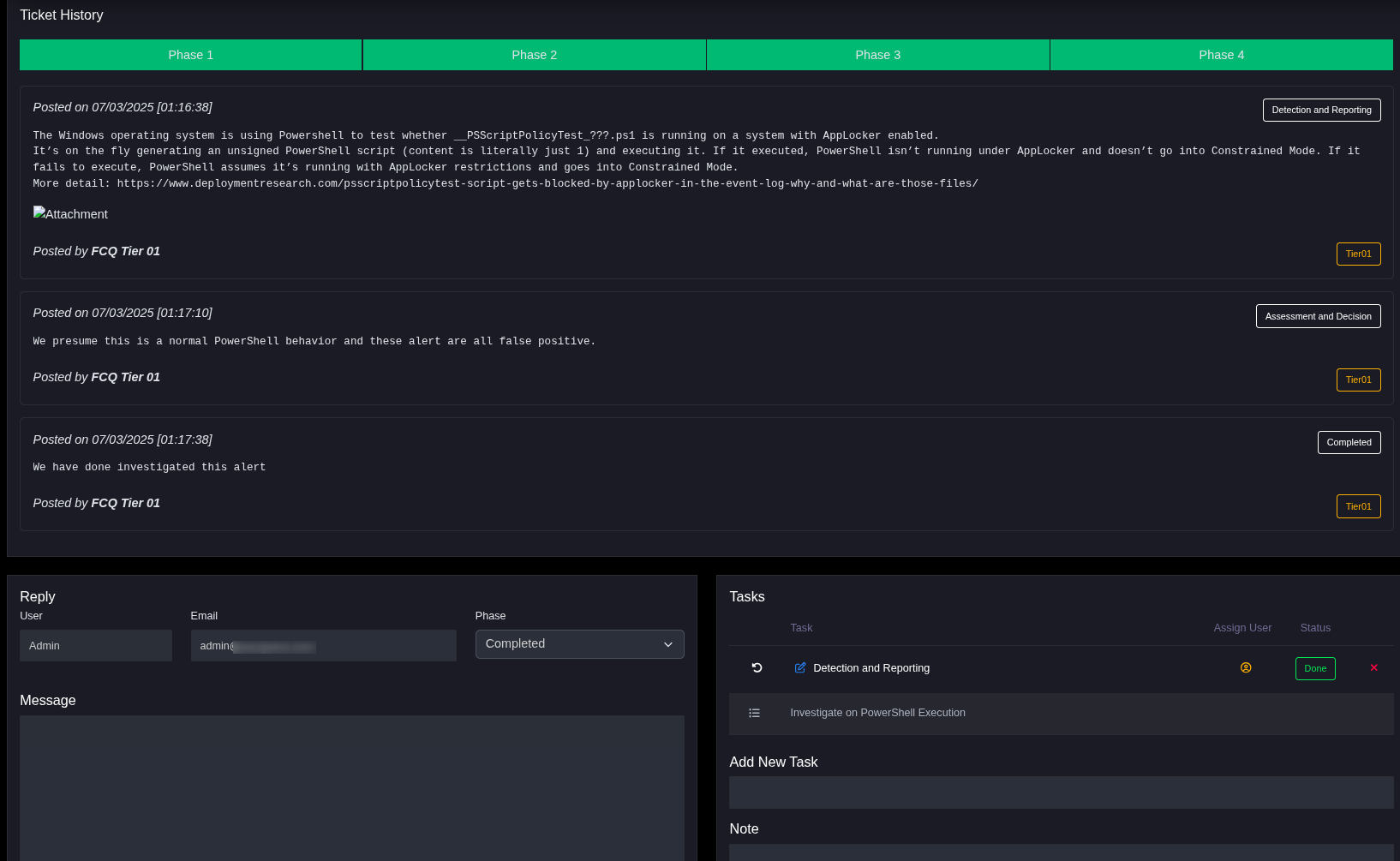
Analysts or customers can use the comment & reply feature to coordinate response and discuss events.
The Ticket Tasks feature allows creating individual tasks and coordinating execution.
6. Isolating and blocking threats
Use Block IP or Playbook (SOAR) to isolate infected hosts.
When an infected server is suspected, to prevent spread to other machines, Analysts can use the Block IP feature to isolate that machine.
Method 1: Block IP from Events screen
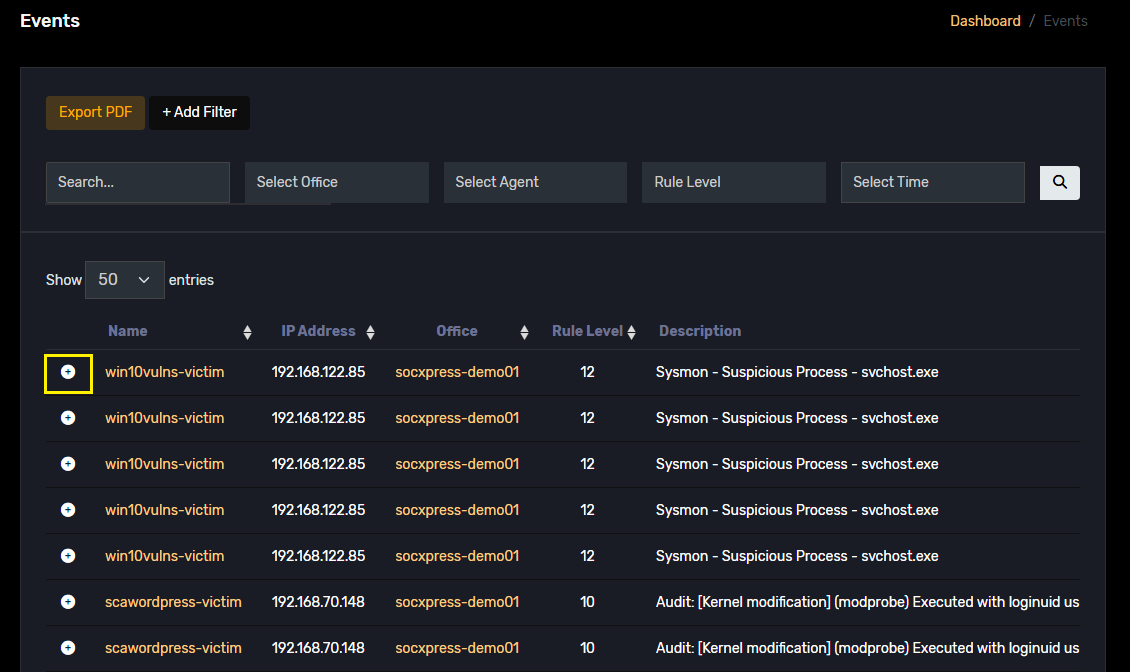
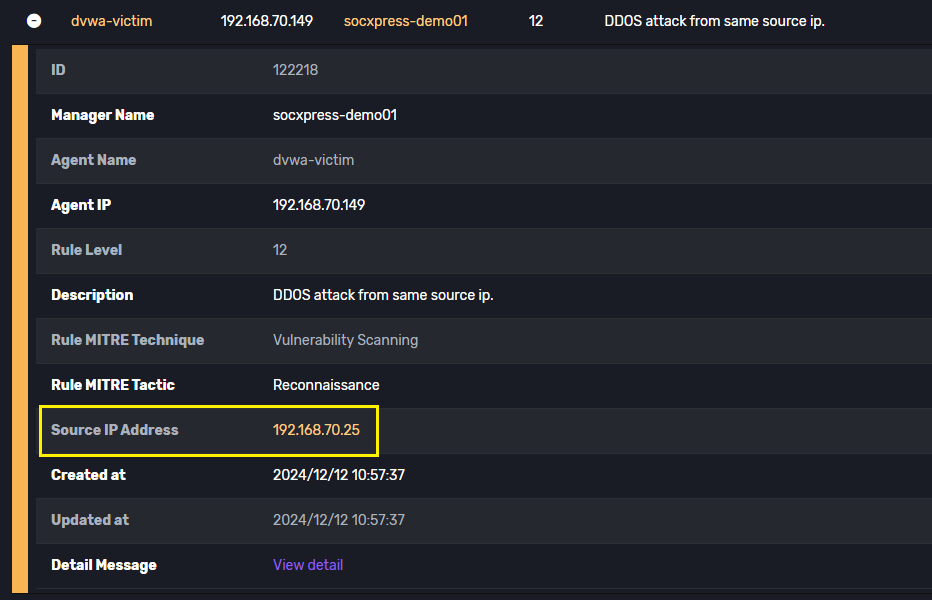
On the Events screen, click the + icon to view event details.
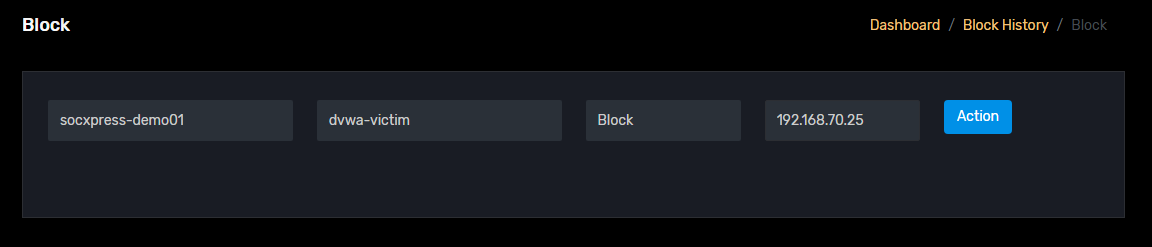
Example: with Events showing Brute Force, users can click on Source IP Address/Destination IP Address, and the system will automatically switch to the Block screen with corresponding fields, click Action to Block these IPs.
Method 2: Block from Block screen
When you have the IP address to block, enter it in the IP field, select a specific Agent or All Agent to block all Agents from connecting to the IP with intrusion indicators.
Follow the same process when wanting to Unblock.
7. Reporting
- Export weekly/monthly/custom reports for management or audit purposes.
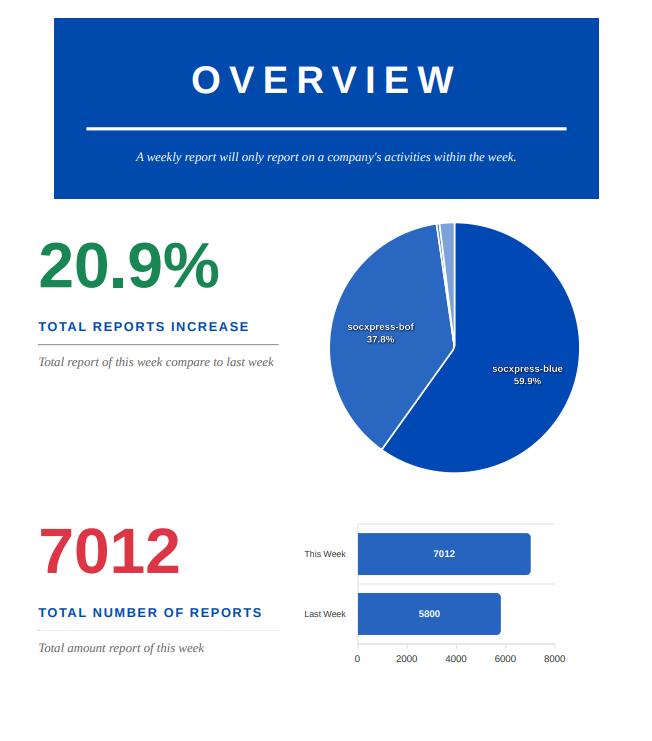
SocXpress supports automatic, visual report generation on a weekly, monthly basis, or with flexible custom date range selection.
Reports include aggregated analysis of generated events, severity assessment, statistics on vulnerabilities found during scanning, and necessary recommendations for remediation.
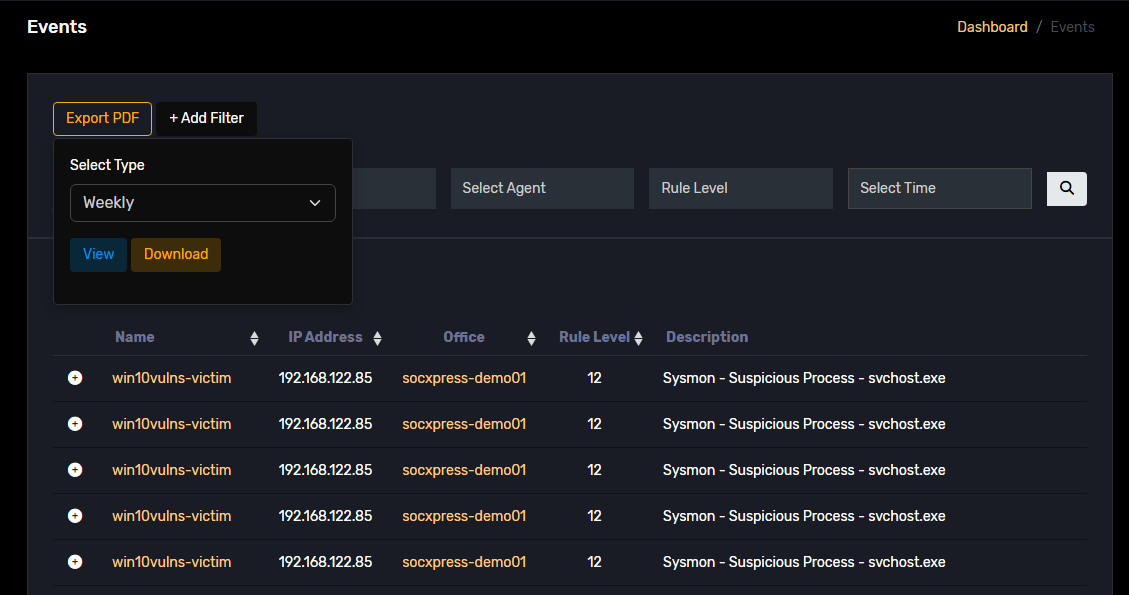
To export reports, follow the steps below:
- Navigate to: Asset Management 🡪 Events;
- Select the corresponding time frame for report export: Weekly/Monthly/Custom
- Click View to preview or download the report.
Sample report