Organization
Organization
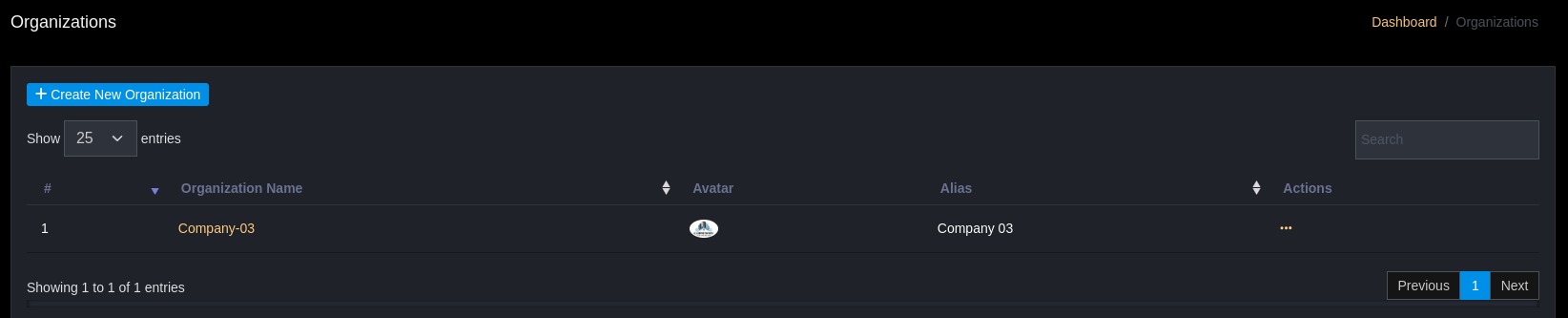
The Organization module (Menu Asset Management → Organizations) allows users to manage hierarchical organizational structure, where each organization can include multiple different companies/components. This is the foundation for data separation, access control, and tracking separate security events per organization.
Additionally, users can view an overview of events and connected agents for the entire organization.
Purpose
- Separate data and access permissions by organization.
- Configure declarations and integrations (e.g., Telegram bot, email) for each organization.
Key Features
- Create / Edit / Delete organizations
- View summary Dashboard (office, agent, alert counts)
- Configure report information (cover, primary color, header)
Creating an Organization
Allows users to create a new organization in the system, declare basic information, and configure integration connections (such as Telegram Bot). This screen serves:
- System administrators wanting to add new companies or branches.
- Dividing organizational structure, timezone for accurate reporting and alerts.
- Setting up alert integrations through popular channels like Telegram, Signal...
Workflow:
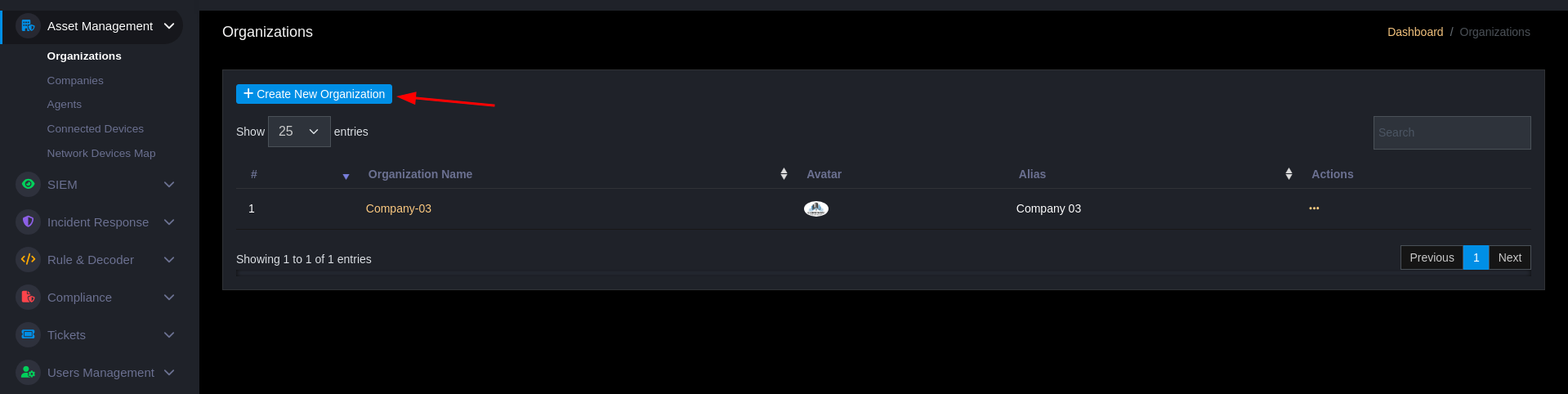
- User clicks + Create New Organization from the list screen.
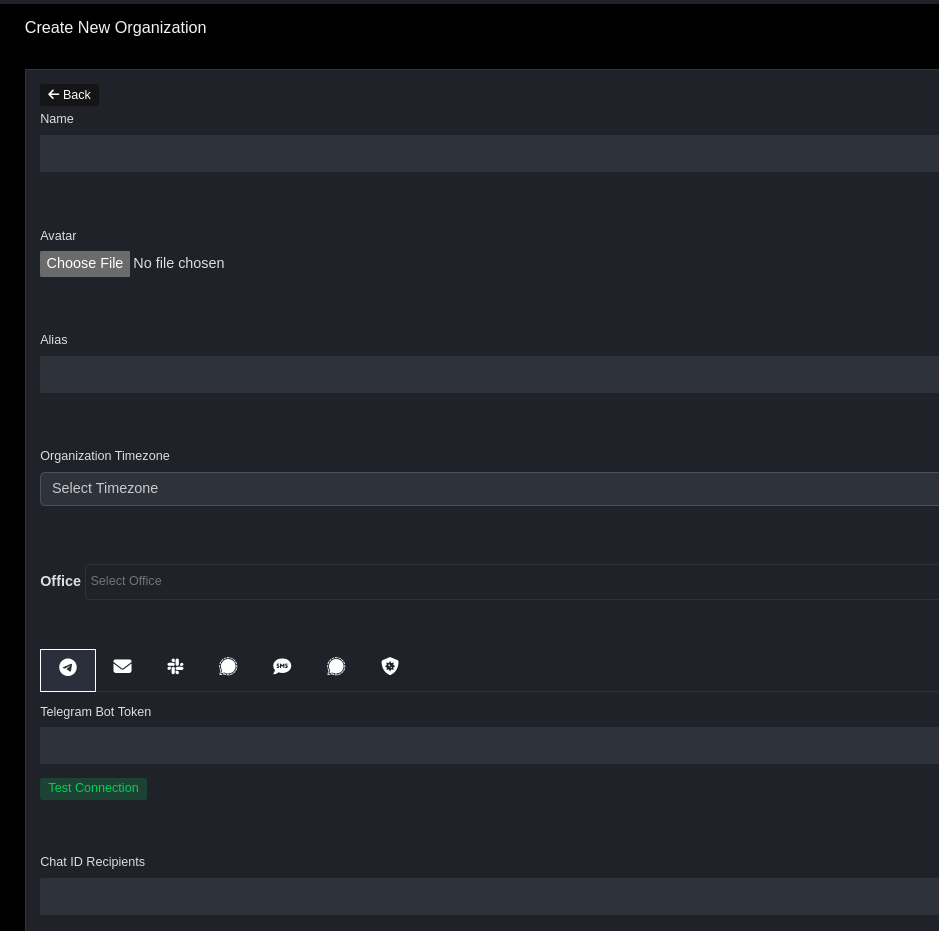
- User fills in all fields: name, alias, timezone, office, select avatar, upload cover image (if needed).
- If using Telegram, fill in bot token and chat ID list → click Test Connection to verify.
- Upon completion, click the Create button.
- System saves new organization information, redirects to list or displays success notification.
Main Data Fields
| Field Name | Description |
| Name | Official name of the organization. Example: ABC Company. |
| Avatar | Logo or icon representing the organization (optional). PNG, JPG formats |
| Alias | Alternative name or nickname. Displayed concisely on interface. |
| Organization Timezone | Standard timezone of the organization, for reporting and event time display. |
| Office | Link this organization with one or more offices created previously. |
| Notification Channels (icons) | Supports different notification channel types such as Telegram, Email, Slack, Signal, SMS, Microsoft Teams. Corresponding edit fields in the form. |
| Report Cover | Upload custom cover image for PDF reports (optional). |
| Report Primary Color | Primary color code for organizational reports (e.g., #1e88e5). |
| Report Header | Header displayed at the top of reports. |
Viewing Organization Information
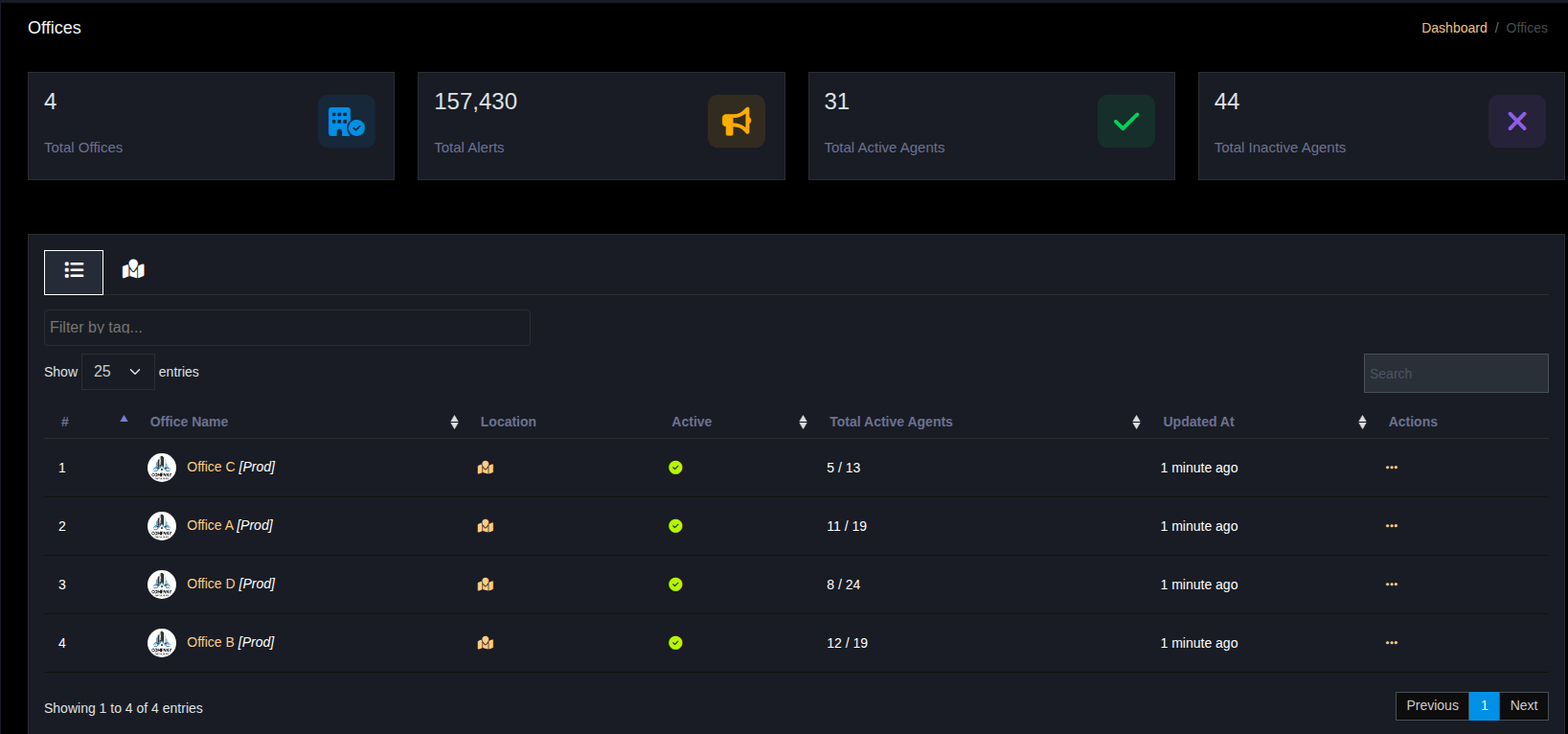
Each organization can have multiple different offices (branches, centers, etc.). Each office has its own list of monitored devices (agents). This screen allows users to view office lists, total alert count, number of active and inactive agents.
Metrics Summary Area (Dashboard)
| Item | Description |
| Total Offices | Number of offices in the organization. |
| Total Alerts | Total alerts generated from offices. |
| Total Active Agents | Total active agents |
| Total Inactive Agents | Total inactive agents. |
- Dashboard displays
Total Offices,Total Alerts,Total Active Agents,Total Inactive Agents. - Offices table allows
View,Overview,Edit,Deletefor each Office.
List Area (Offices Table)
| Item | Description |
| Total Offices | Number of offices in the organization. |
| Total Alerts | Total alerts generated from offices. |
| Total Active Agents | Total active agents |
| Total Inactive Agents | Total inactive agents. |
Operational Recommendations
- Create profile templates (saved filters) for each organization to support periodic reporting.
- Use notification channels for automatic organization-specific alerts (e.g., incident alerts to organization-specific Telegram group).