Falcon Threat Hunter
Falcon Threat Hunter
1. Overview
Falcon Threat Hunter is a feature that enables threat hunting across one or more sensors based on Indicators of Compromise (IOC – Indicator of Compromise).
Objectives
- Query IOCs in Threat Intelligence (TI)
- Filter and select relevant attributes
- Execute hunting across the system
- Automatically generate write-up and playbook
2. Prerequisites
- Have access to Alert Detail
- Have permission to use Threat Intelligence Lookup
- Have available IOCs (IP, MD5, SHA1, filename, domain, ...)
3. Workflow
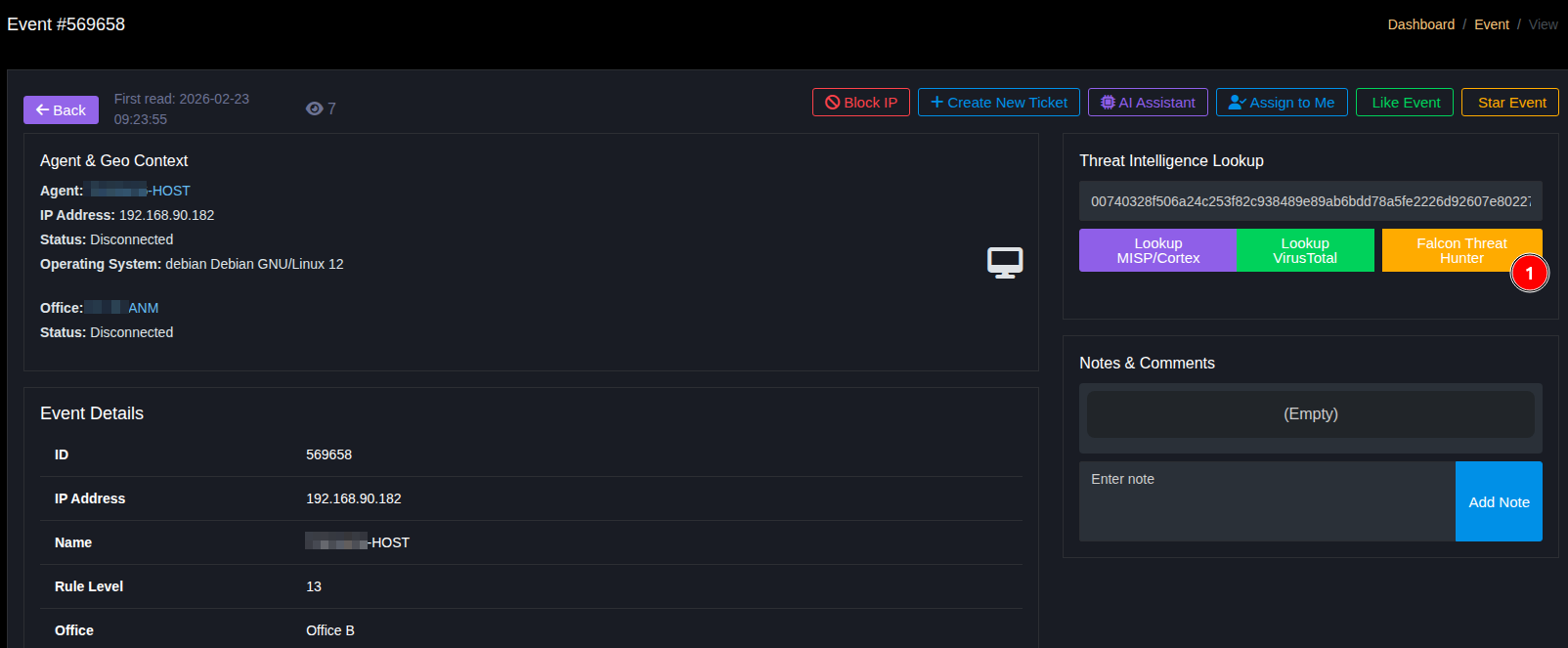
3.1. Access Feature
- Open an Alert detail
- In the Threat Intelligence Lookup area
- Click Falcon Threat Hunter
- A 5-step popup will display
3.2. Step 1 – Input IOC
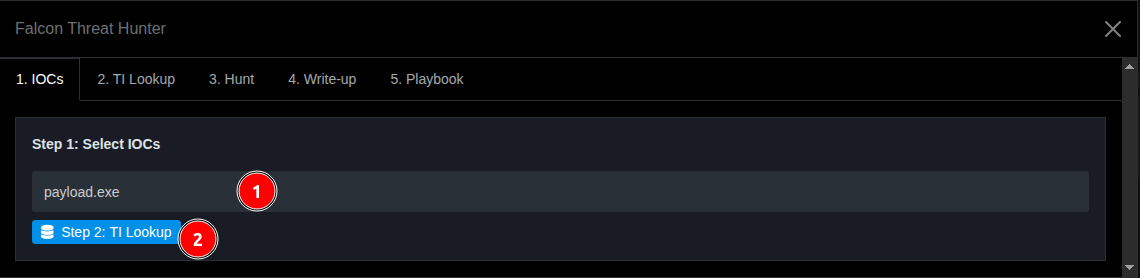
Actions:
- Enter IOC (IP / MD5 / SHA1 / filename / domain...)
- Click Step 2: TI Lookup
Results:
- Display list of TI Events containing the IOC
3.3. Step 2 – Select Events & Attributes
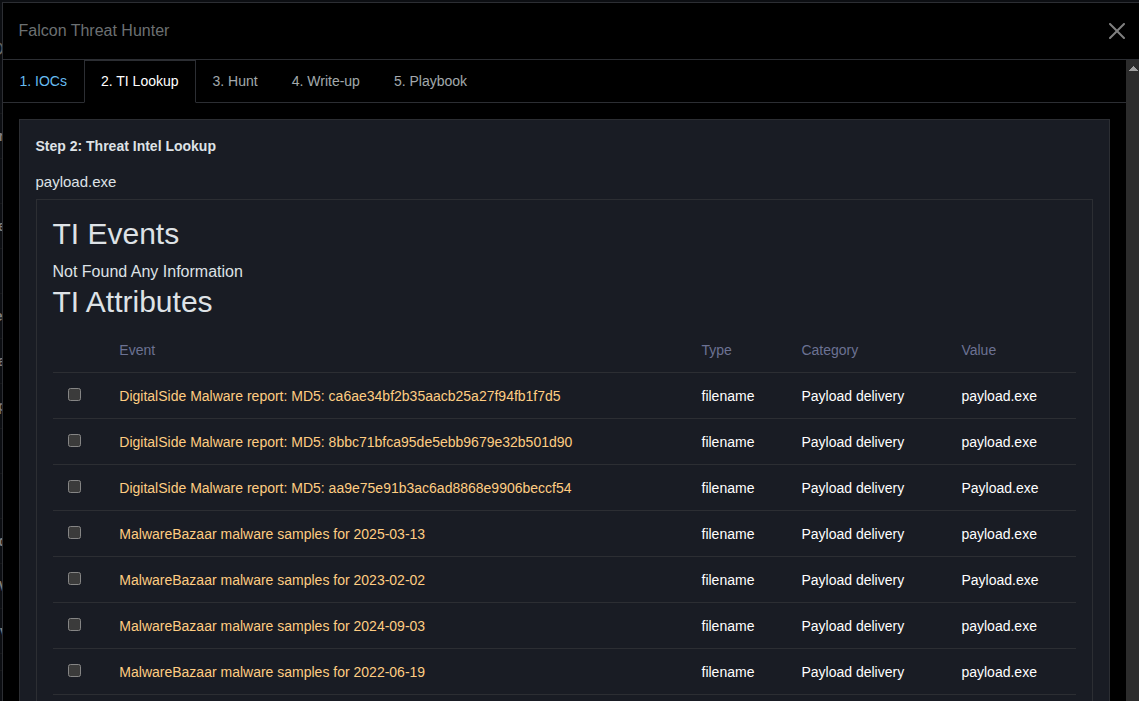
Description:
Display TI Events related to the IOC
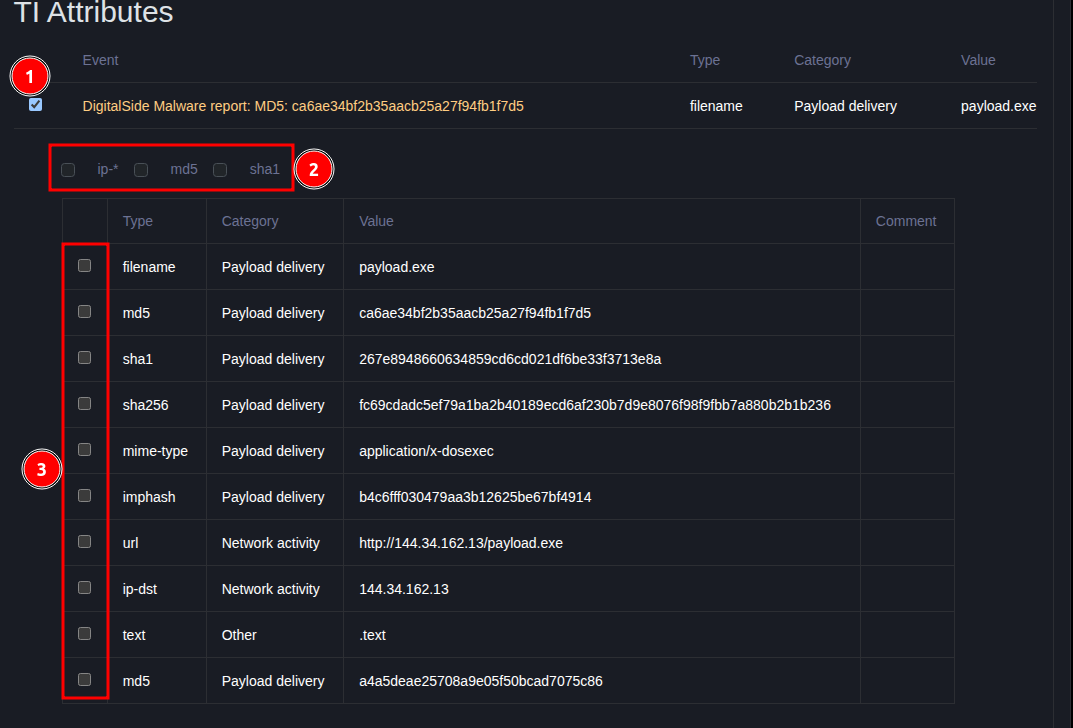
Actions:
- Check one or more Events
- Expand to view Attributes list
- Select attributes for hunting
Options:
- Quick select by type (MD5, SHA1, IP, ...)
- Select multiple attributes at once
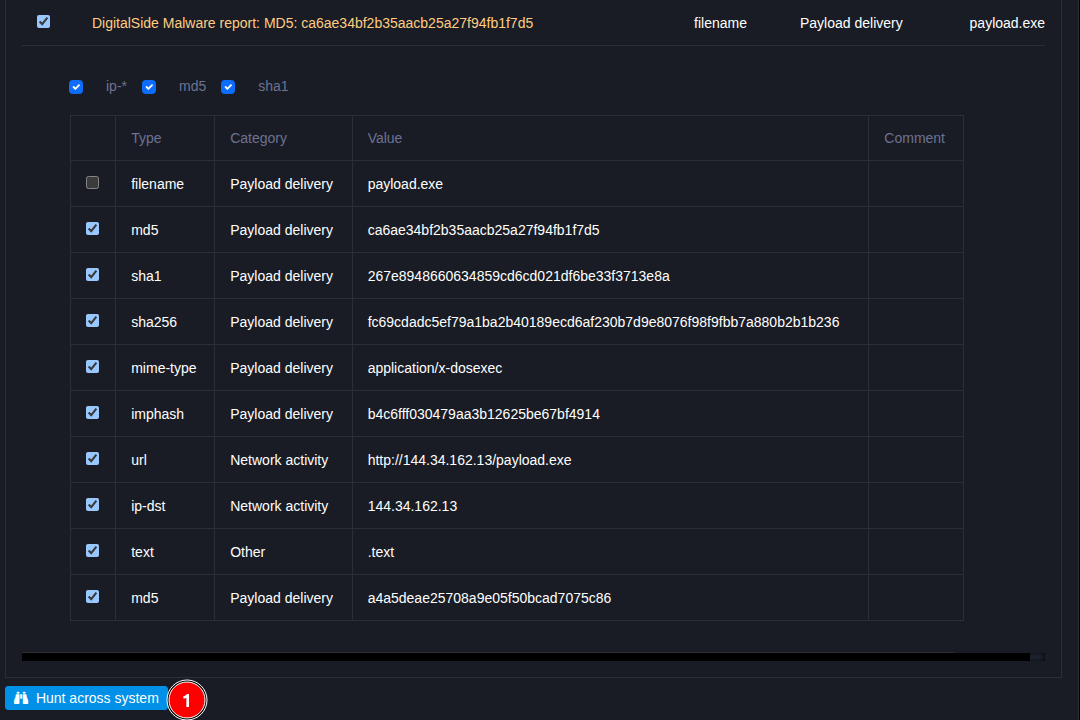
- Click Hunt across system
3.4. Step 3 – Configure Hunting
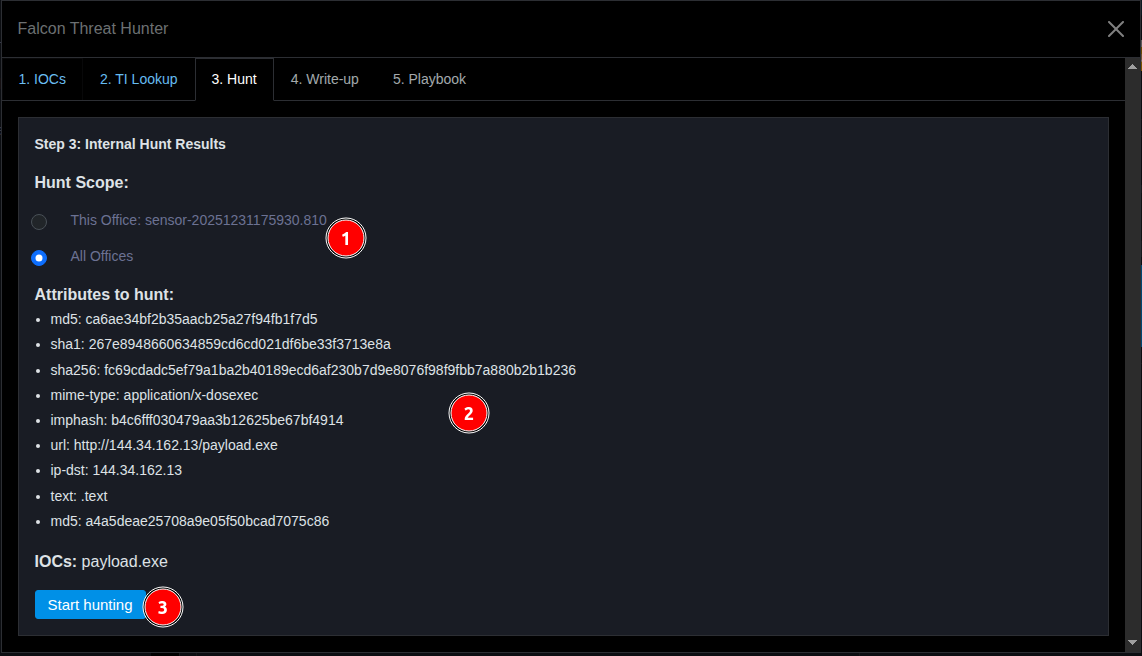
3.4.1. Scope
Select hunting scope:
Current Office Sensors: Sensors belonging to current OfficeAll Offices Sensors: Entire system
3.4.2. Review
- Verify the list of attributes to be used
3.4.3. Execute
- Click Start Hunting
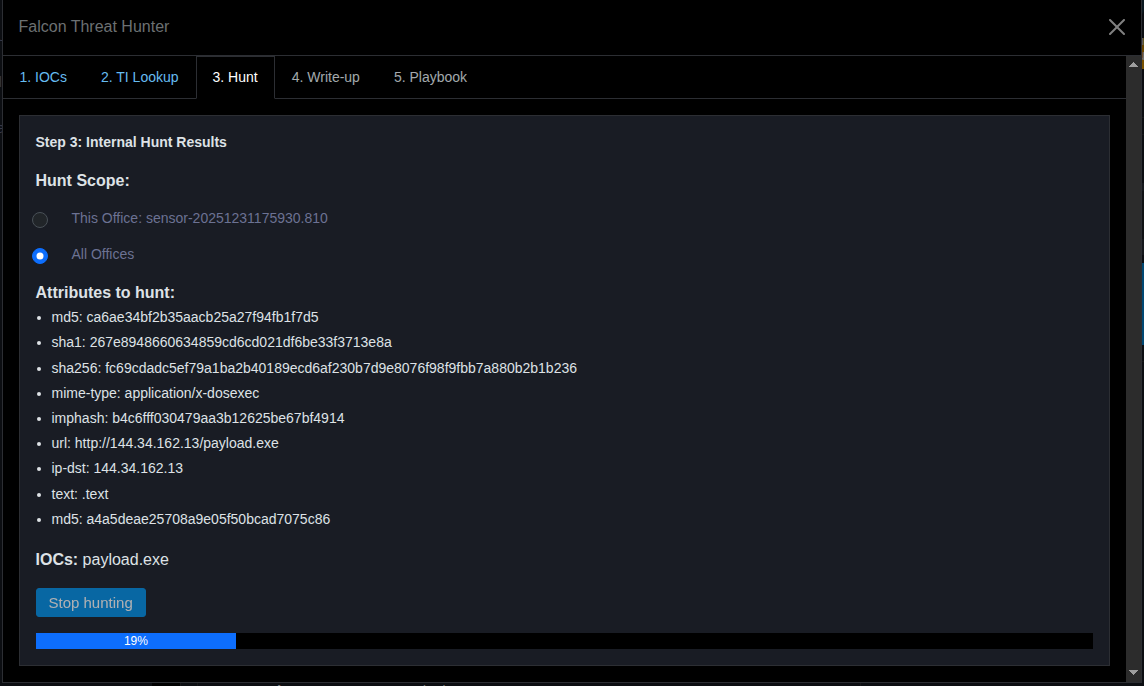
Results:
- Display progress (%)
- Automatically proceed to Step 4 when complete
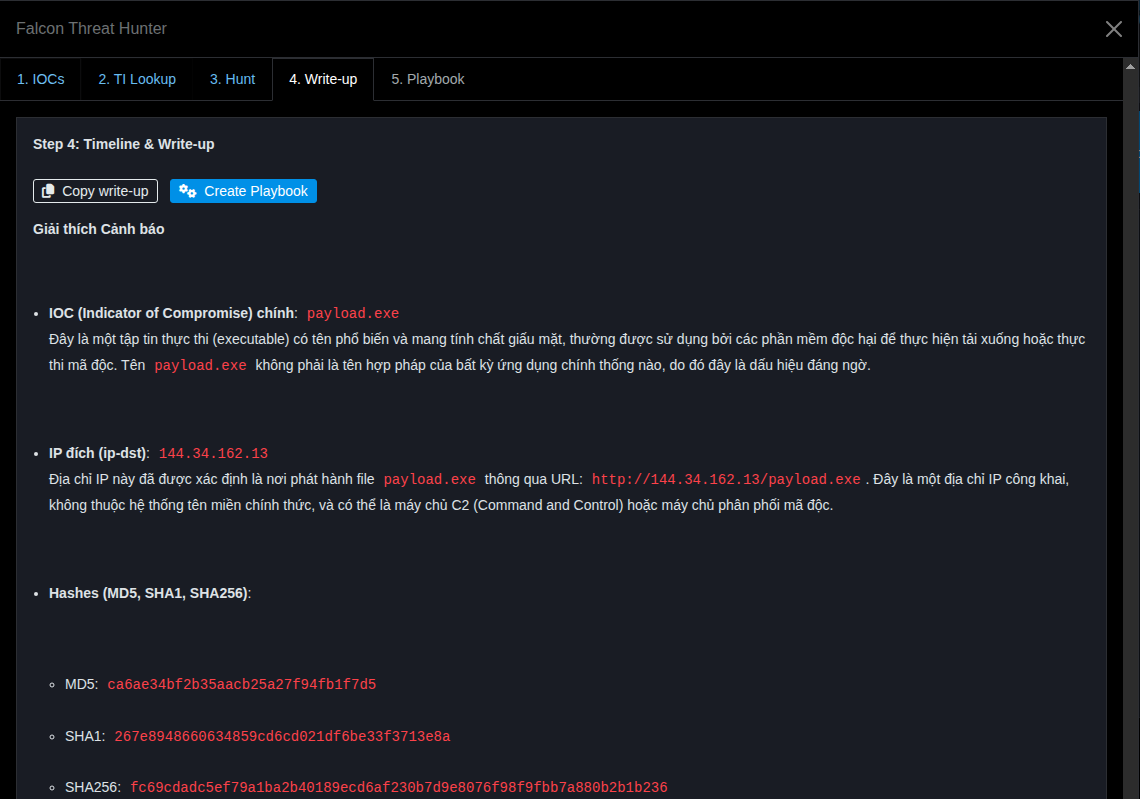
3.5. Step 4 – Generate Write-up
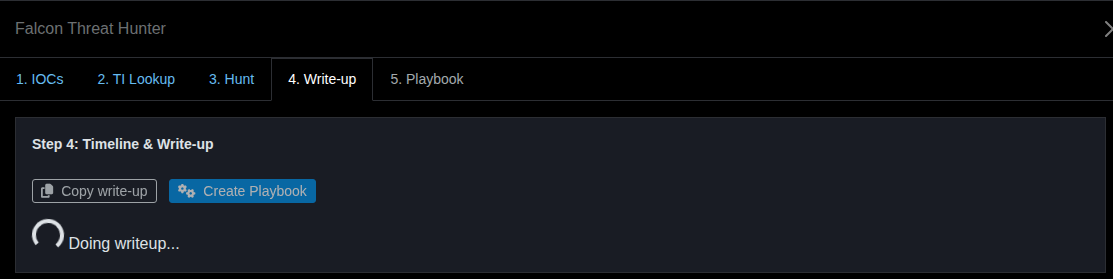
Description:
- System automatically generates write-up
Status:
- While processing:
Copy Write-up: DisabledCreate Playbook: Disabled
- After completion:
- Buttons are enabled
Actions:
- Click Copy Write-up
- Click Create Playbook
3.6. Step 5 – Create Playbook & Ticket
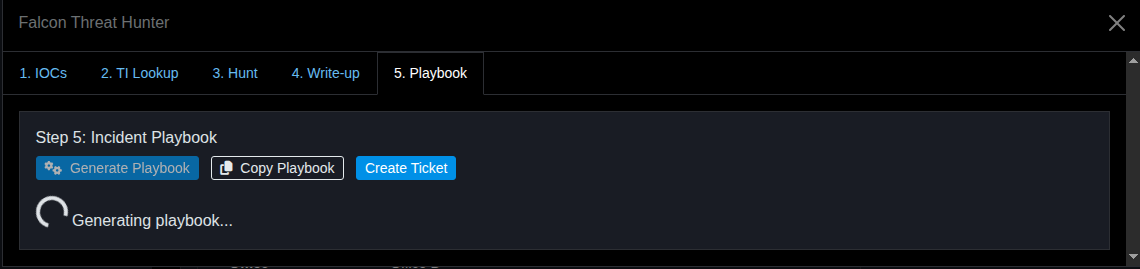
Description:
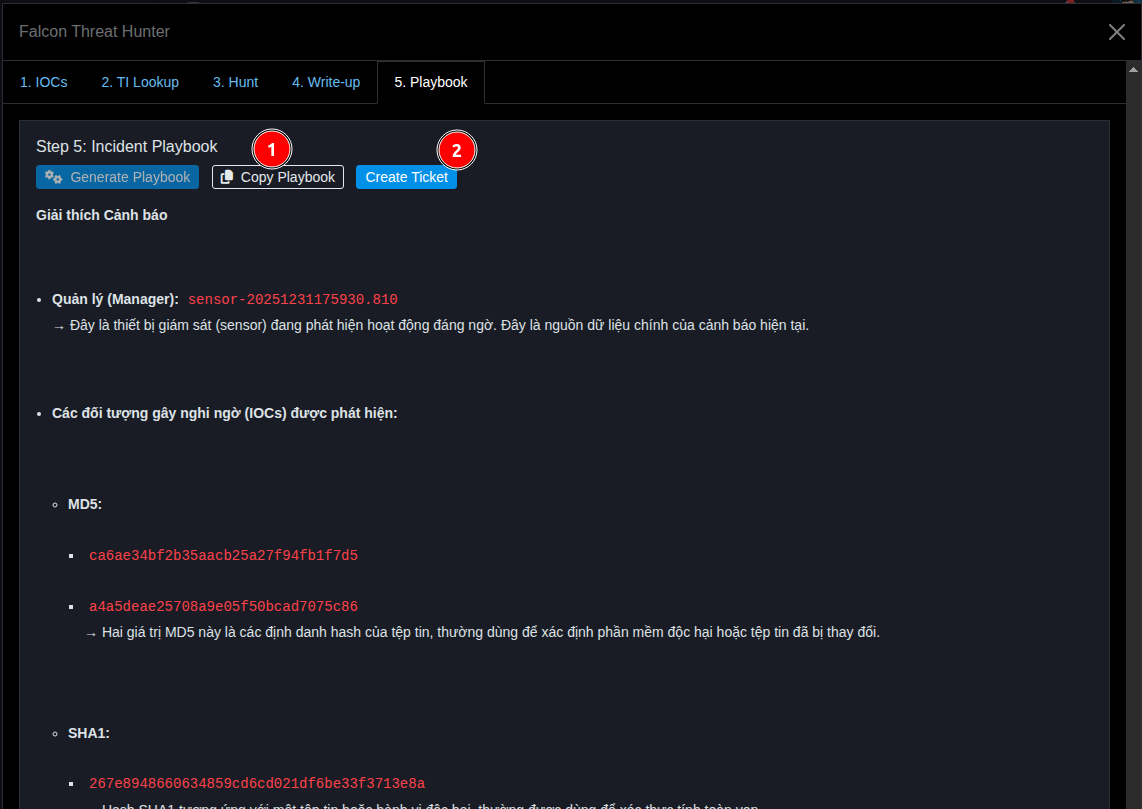
- System automatically creates Playbook
After completion:
- Enable Create Ticket button
Actions:
- Copy Playbook (text)
- Click Create Ticket
4. End-to-End Flow
Input IOC
   ↓
TI Lookup
   ↓
Select Attributes
   ↓
Configure Hunting
   ↓
Execute Hunting
   ↓
Generate Write-up
   ↓
Create Playbook
   ↓
Create Ticket
5. Best Practices
- Use multiple IOCs to increase coverage
- Prioritize hashes (MD5/SHA1) for higher accuracy
- Limit scope if needing to optimize processing time
- Carefully review attributes before hunting
6. Notes
- Hunting time depends on:
- Scope (Office vs All)
- Number of attributes
- System data volume
- Write-up and Playbook are auto-generated, need review before actual use