Management
SOAR Scenario Management
Purpose
SOAR (Security Orchestration, Automation and Response) helps automate the incident response action chain: from detection → classification → action (block, ticket, run playbook) → logging.
Key Features
- Create, edit, drag-and-drop build workflows (playbooks).
- Export / Import workflow (zip) for sharing or backup.
- Hide inactive flows to clean up the interface.
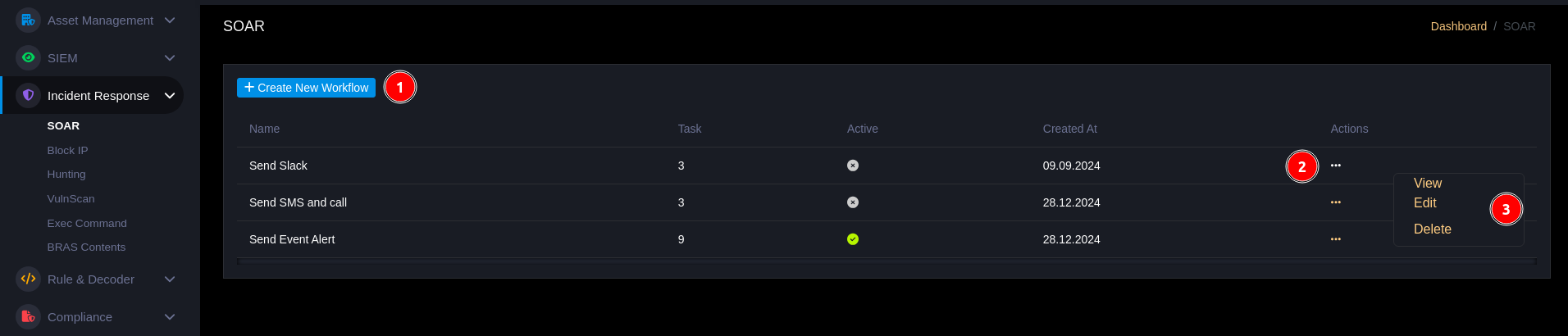
To create a new Workflow, click the "Create new Workflow" button, the application will switch to the Workflow creation form screen, enter required information and press Save. After saving, the application will switch to the workflow building screen with components (actions) that can be dragged and dropped.
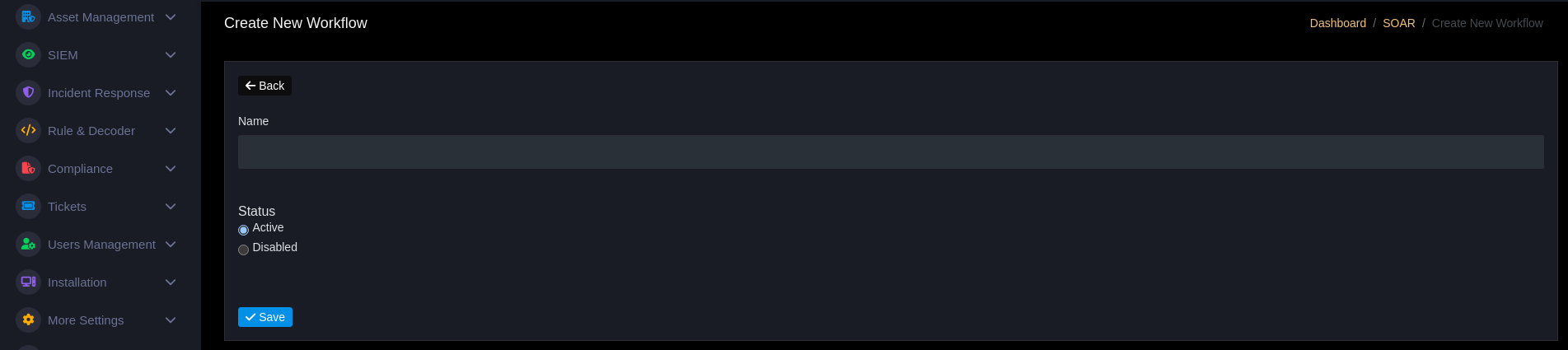
SOAR Detail — Task types
- Abort / Stop / Pause: control workflow execution flow.
- Event Correlator: change rule level or add labels when conditions are met.
- EventDrop: delete event when needing to remove false-positive.
- Block IP: block IP through firewall / sensor integration.
- Create Ticket: create ticket automatically with pre-filled information.
- Exec Command: execute command on sensor/host.
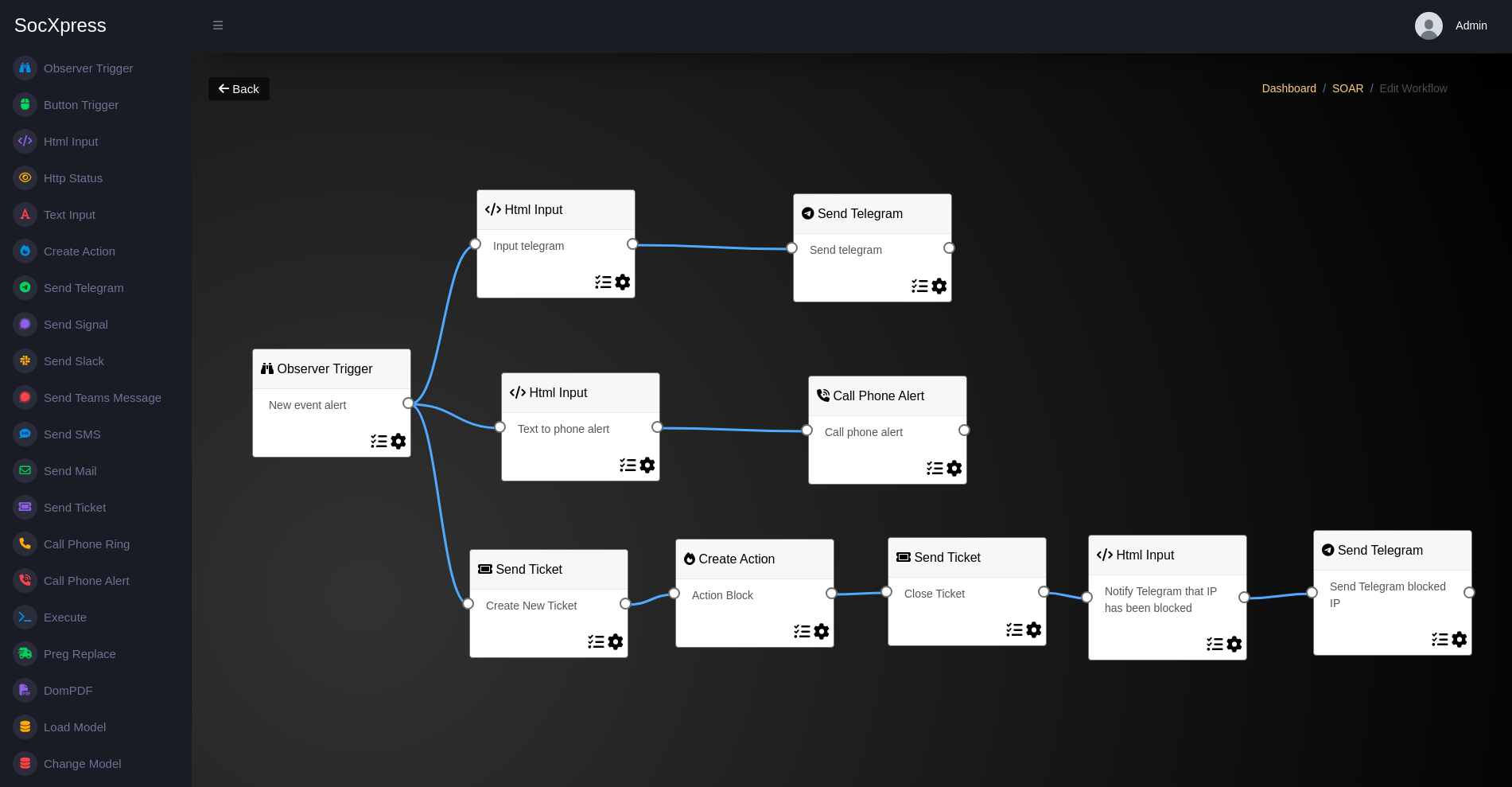
Export / Import
- Export: select workflow(s) → export
.zipfile containing configuration and metadata. - Import: upload zip → view status (
New|Exists) → selectCreateorOverwrite.
Export
Benefits for users:
- Backup playbooks before editing, avoid losing configuration when experimenting or updating.
- Easily share playbooks with Tier 2/3 or other teams for review and improvement.
- Support quick recovery when system encounters issues or when rollback is needed.
- Save time when able to deploy standard playbooks to different environments (lab, test).
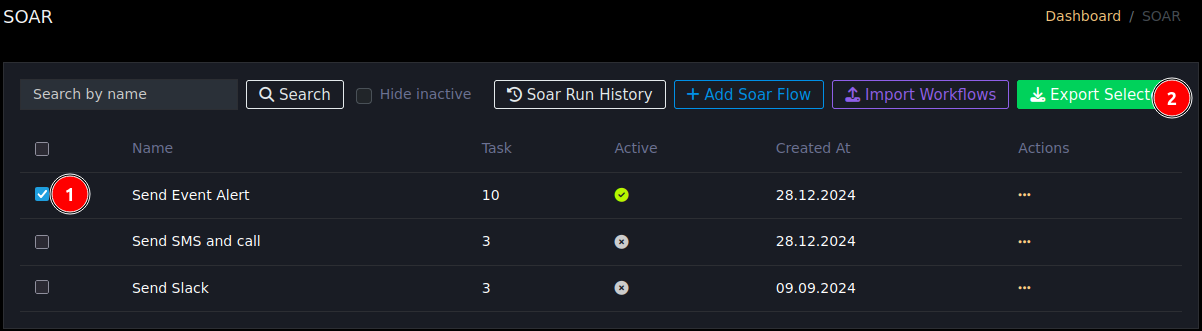
- Select one or more SOAR configurations to Export
- Execute Export and download zip file
Import
Benefits for users:
- Quickly deploy sample playbooks built by Tier 2/3, helping accelerate triage.
- Ensure consistency of incident handling procedures among analysts and shifts.
- Reduce errors from manual operations because playbooks have been optimized and tested.
- Increase operational efficiency when able to import multiple automation playbooks for handling common incidents (phishing, brute-force, malware detection...).
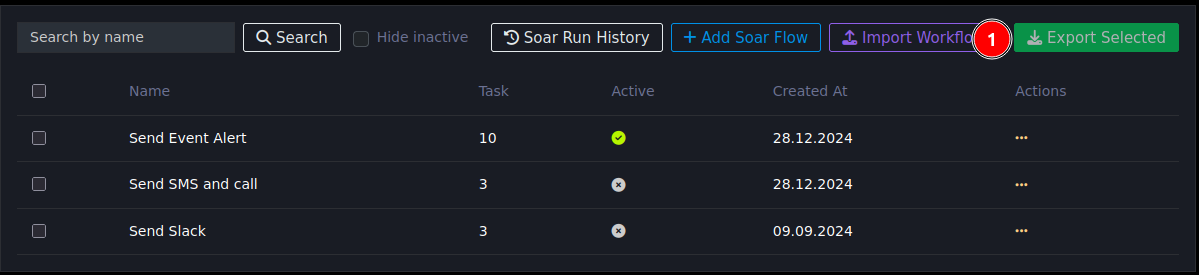
- Click to go to Import page
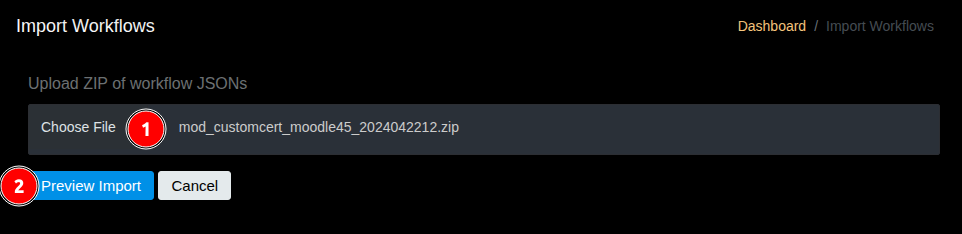
- Select the compressed workflow file previously exported
- Review information, file status before executing
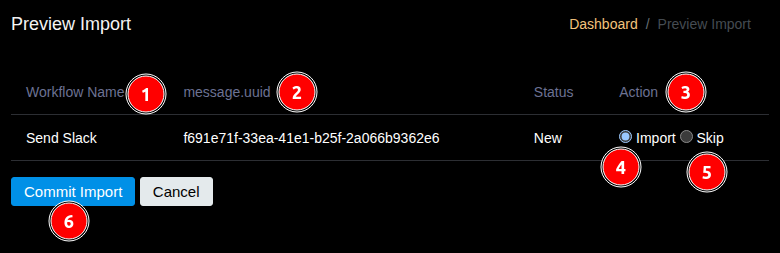
- Name of Workflow when imported
- Unique identifier of the workflow
- If UUID conflicts with any existing workflow, status will be Exists instead of New
- Create new or Overwrite existing workflow (if UUID conflicts)
- Skip if not wanting to apply
- Execute action
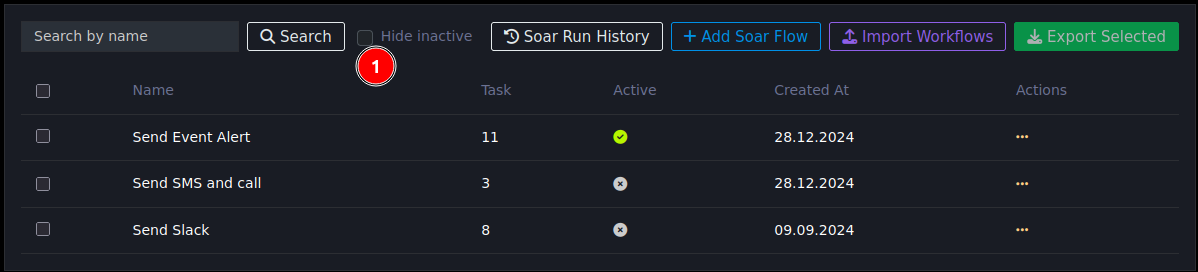
Hiding flows (Hide inactive)
Cleaner interface, only displaying necessary flows.
Best practices
- Test workflow in test environment before applying to production.
- Log and audit trail for each executed task.
- Limit Exec Command permissions to avoid dangerous automatic command execution.